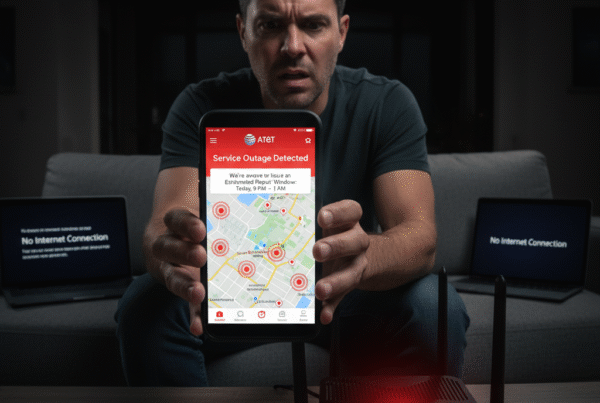
Having your AT&T TV not load properly when you’re ready to relax can be incredibly frustrating. Whether the app freezes, buffers endlessly, or refuses to open at all, the issue is usually rooted in a few common causes—most of which can be fixed without professional help.
This detailed guide walks you through why AT&T TV might not be loading, and explains step-by-step troubleshooting methods to get your streaming experience back on track—across Smart TVs, streaming sticks, computers, and mobile devices.
1. Identifying the Root Cause of AT&T TV Loading Issues
When AT&T TV doesn’t load, the problem typically lies in one of these areas:
-
Internet instability or weak Wi-Fi signals
-
Outdated app or system software
-
Corrupted cache or temporary data
-
Device performance issues
-
Incorrect network configurations
Understanding which of these applies to your situation helps you fix the problem faster. Let’s go step-by-step through each possibility.
2. Check the Internet Connection First
A stable and strong internet connection is essential for streaming. AT&T TV requires a minimum of 8 Mbps for HD and at least 25 Mbps for 4K content. If your internet is too slow or unstable, videos won’t load or may buffer continuously.
How to check and fix:
-
Run a speed test using your device’s built-in tool or a reliable app.
-
If the results are lower than your subscribed speed, restart your modem and router.
-
Unplug both devices for 30 seconds, then plug them back in to refresh the network.
-
Try reconnecting your device and launching the AT&T TV app again.
-
For a more reliable connection, use an Ethernet cable instead of Wi-Fi, especially for Smart TVs or streaming boxes.
If the issue persists, try disconnecting unused devices from the network, as multiple connected devices can reduce available bandwidth for streaming.
3. Restart Your Device
Sometimes the simplest fix is the most effective. Restarting your streaming device clears out memory cache, resets temporary data, and gives the app a clean slate.
Steps to restart:
-
Turn off your Smart TV, streaming stick, or mobile device.
-
Unplug it from power for 20–30 seconds.
-
Plug it back in and relaunch AT&T TV.
This process helps eliminate small software glitches that often prevent the app from loading.
4. Update the AT&T TV App
Running an outdated version of the AT&T TV app can cause compatibility issues with your device or the streaming platform. Regular updates from AT&T include bug fixes, performance improvements, and optimizations for new devices.
How to update the app:
-
On Smart TVs: Open your TV’s app store, locate the AT&T TV app, and select Update if available.
-
On mobile devices: Go to Google Play Store or Apple App Store, search for AT&T TV, and tap Update.
-
On streaming devices: Open the system menu, go to “Manage Installed Apps,” and check for updates.
After updating, restart your device and check if the issue is resolved.
5. Clear Cache and Temporary App Data
Apps store cache files to speed up loading times, but when this data becomes corrupt or overloaded, it can prevent the app from functioning correctly. Clearing cache and data forces the app to rebuild fresh files.
How to clear cache:
-
On Android devices/TVs: Go to Settings > Apps > AT&T TV > Storage > Clear Cache and Data.
-
On Smart TVs: Navigate to System Settings > App Settings > Clear Cache/Data.
-
On Roku or Fire TV devices: Remove the app, restart your device, and reinstall it.
After clearing cache or reinstalling, log in again to re-establish a clean connection with the AT&T TV servers.
6. Check for System or Firmware Updates
Just like apps, your device’s operating system or firmware should also be updated regularly. Outdated firmware can interfere with app performance, networking, or compatibility.
How to check for updates:
-
Smart TVs: Go to Settings > System > Software Update > Check for Updates.
-
Streaming Devices: Navigate to System Settings > About > Check for Updates.
-
Mobile Devices: Open Settings > General > Software Update.
Keeping your system updated ensures smoother operation and prevents known bugs from disrupting your streaming experience.
7. Verify DNS and Network Settings
In some cases, DNS (Domain Name System) configuration errors can block your device from reaching AT&T’s streaming servers. Adjusting DNS settings can improve connectivity and reduce buffering.
How to adjust DNS settings:
-
Access your network settings on the device.
-
Choose Manual DNS Configuration (if available).
-
Set a public DNS such as:
-
Primary DNS: 8.8.8.8
-
Secondary DNS: 8.8.4.4
-
-
Save and restart your device.
This step is optional but can make a noticeable difference in performance for users facing frequent buffering or app loading issues.
8. Reinstall the AT&T TV App
If the above methods don’t work, the app installation itself may be corrupted. Removing and reinstalling it ensures that any damaged or outdated files are replaced with the latest version.
Steps:
-
Delete the AT&T TV app from your device.
-
Restart your device completely.
-
Reinstall the AT&T TV app from your app store.
-
Log back in with your AT&T credentials.
This step is often the final fix for stubborn loading or black screen issues.
9. Optimize Your Home Wi-Fi for Streaming
If your home has multiple users or large spaces, optimizing Wi-Fi is crucial for consistent streaming performance.
Tips for better Wi-Fi performance:
-
Place your router in a central, elevated position away from thick walls and metal surfaces.
-
Use 5 GHz Wi-Fi for faster speeds on newer devices.
-
Add a Wi-Fi extender or mesh system for larger homes.
-
Limit heavy downloads or gaming when streaming AT&T TV.
A well-optimized network can drastically reduce buffering and connection drops.
10. Device-Specific Issues to Consider
Different devices may have unique issues:
-
Smart TVs: Outdated firmware or insufficient memory can slow apps.
-
Streaming sticks (Firestick, Roku, etc.): Overheating or limited RAM may cause lag.
-
Mobile devices: Background apps or battery optimization settings can interrupt streaming.
Regularly restarting your device and freeing up memory helps maintain consistent performance.
Conclusion
When AT&T TV fails to load, it’s usually due to a network issue, outdated software, or cached data problems. Fortunately, most of these can be fixed through simple steps like rebooting your router, clearing app cache, or updating software.
By following the troubleshooting guide above, you can restore a smooth and uninterrupted streaming experience—whether you’re watching on a Smart TV, smartphone, or laptop.
Ensuring your AT&T Internet and TV setup runs efficiently helps you enjoy the full potential of high-speed streaming, 4K playback, and on-demand content without interruptions.