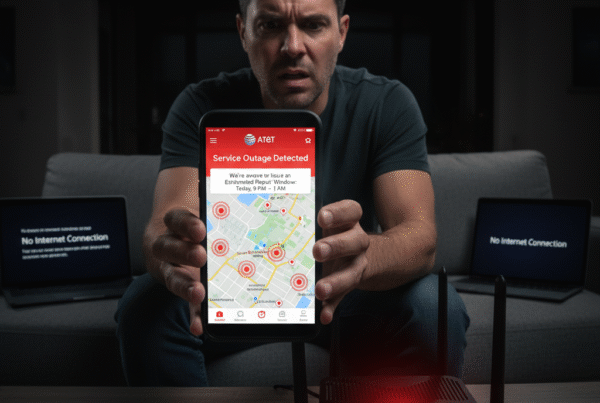
AT&T Fiber is known for its ultra-fast, reliable internet, offering symmetrical upload and download speeds ideal for streaming, gaming, remote work, and smart home devices. However, even with fiber-optic technology, users sometimes experience slow speeds, lag, or frequent disconnects.
If you’ve noticed that your AT&T Fiber Internet isn’t performing as expected, this guide will walk you through the most common causes, detailed troubleshooting methods, and practical steps to restore stable, high-speed connectivity at home or in the office.
Understanding Why AT&T Fiber Might Slow Down
Although AT&T Fiber is one of the most advanced broadband technologies available, performance can still be affected by several internal or external factors. Slow speeds or disconnections usually stem from:
-
Router configuration issues
-
Network congestion or interference
-
Outdated equipment or firmware
-
Excessive connected devices
-
Faulty cables or fiber connections
-
Temporary service disruptions in your area
Let’s explore these causes and their solutions in depth.
1. Evaluate Your Internet Speed Accurately
Before troubleshooting, determine whether your AT&T Fiber is genuinely slow or just being affected by temporary conditions.
Steps to check your speed:
-
Disconnect all devices except the one you’re testing.
-
Connect your device directly to the router with an Ethernet cable.
-
Run a speed test using any built-in speed testing tool.
-
Compare your result with the plan you’re subscribed to (e.g., 300 Mbps, 500 Mbps, 1 Gbps, or 5 Gbps).
If your results are significantly below your subscribed plan, continue to the next steps to pinpoint the cause.
2. Restart Your Gateway or Modem-Router Combo
Restarting your gateway often resolves minor glitches and network congestion. This is one of the simplest yet most effective steps.
How to restart:
-
Unplug your router or gateway from the power outlet.
-
Wait for at least 30–60 seconds to let the system fully discharge.
-
Plug it back in and wait until all indicator lights turn solid green.
Once the system is back online, test your internet again. This process helps refresh your network connection and clear temporary system errors.
3. Optimize Router Placement
Poor router placement can severely affect Wi-Fi performance, even with high-speed fiber connections. Signals weaken when blocked by walls, furniture, or electronic interference.
Tips for ideal placement:
-
Place your router in a central, elevated location in your home.
-
Avoid corners, metal objects, or behind large furniture.
-
Keep it away from microwaves, cordless phones, and other Wi-Fi devices that operate on similar frequencies.
-
For multi-story homes, consider placing the router near the center of your highest-usage floor or using mesh Wi-Fi nodes for better coverage.
Proper router positioning can dramatically improve speed consistency and eliminate weak zones.
4. Check for Overloaded Bandwidth Usage
When too many devices are connected to your network simultaneously, they can compete for bandwidth and slow everyone down.
Common bandwidth-heavy activities include:
-
4K video streaming
-
Online gaming
-
Cloud backups or large file uploads
-
Video conferencing
To fix this:
-
Disconnect unused devices.
-
Schedule automatic updates during off-peak hours.
-
Upgrade your AT&T Fiber plan if your household uses many devices at once (for example, moving from 300 Mbps to 1 Gbps).
A balanced connection helps maintain high performance for all users without sudden slowdowns.
5. Update Firmware and Software
Outdated firmware on your router or connected devices can lead to disconnections and speed drops. Manufacturers release firmware updates to fix bugs and improve network stability.
Steps to update firmware:
-
Log into your router’s admin panel (usually by entering the router’s IP address in your browser).
-
Navigate to the Firmware Update or System Settings section.
-
Check for available updates and install them if prompted.
-
Restart the router after the update.
Also, ensure that all your laptops, smartphones, and smart devices are updated with the latest software or OS version for optimal compatibility.
6. Check the Fiber Connection and Cables
Physical issues can also cause interruptions in AT&T Fiber performance. Loose or damaged cables may lead to signal drops or slower transmission.
What to inspect:
-
Ensure the fiber cable is securely plugged into the wall port and the gateway.
-
Avoid bending or pinching the fiber line—it’s delicate and can easily break.
-
Replace old or damaged Ethernet cables (use CAT6 or higher for best performance).
If you’ve recently moved your router or rearranged cables, double-check that all connections are firm and clean.
7. Analyze for Network Interference
Wi-Fi signals can be disrupted by interference from other nearby networks or household electronics. This is especially common in apartments or areas with dense Wi-Fi traffic.
To minimize interference:
-
Use the 5 GHz band for faster, shorter-range connections.
-
Reserve 2.4 GHz for older or distant devices.
-
Manually change your Wi-Fi channel if neighbors use the same frequency band.
Some routers automatically select the best channel, but manually adjusting it can sometimes produce better results.
8. Reset Your Router to Factory Settings
If all else fails, a full factory reset can remove any misconfigurations or conflicting settings.
How to perform a reset:
-
Locate the small reset button on the back of your router.
-
Hold it down for about 10–15 seconds using a paperclip or pin.
-
Release and allow the device to reboot.
Afterward, reconfigure your Wi-Fi name (SSID) and password. This process wipes out custom settings but ensures a completely fresh start.
9. Upgrade Your AT&T Fiber Plan if Needed
Your household’s internet habits may have outgrown your current plan. Streaming 4K content, hosting video calls, and gaming all demand substantial bandwidth.
If your speed tests are consistently maxing out your current plan’s limits, consider upgrading to 500 Mbps or 1 Gbps AT&T Fiber for better performance. The higher plans offer more stability, especially in homes with multiple devices connected simultaneously.
10. Maintain Optimal Network Health
Consistent performance requires routine maintenance. To keep your AT&T Fiber running smoothly:
-
Restart your router once a week.
-
Regularly check for firmware updates.
-
Use a surge protector to prevent power-related disruptions.
-
Keep your network secure with strong passwords to prevent unauthorized access.
These small maintenance habits can help you avoid most common fiber internet issues before they occur.
Conclusion
AT&T Fiber is built to deliver high-performance internet with impressive reliability, but occasional slowdowns or disconnections can occur due to equipment, configuration, or environmental factors.
By following the steps outlined in this guide—checking your speed, optimizing your setup, updating software, and ensuring proper connections—you can restore fast, dependable internet in minutes.
Consistent maintenance and correct setup help ensure your AT&T Fiber connection performs at its best, providing the speed, stability, and performance that fiber-optic technology is known for.