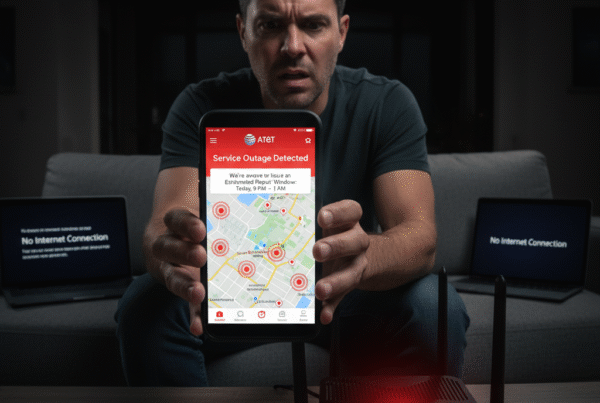
Experiencing frequent internet disconnections can be frustrating, especially when working from home, streaming your favorite shows, or playing online games. For AT&T Internet users, intermittent connectivity issues are often caused by a combination of hardware, software, and network factors. This guide provides a comprehensive, easy-to-follow approach to identify the causes and resolve frequent AT&T Internet disconnections effectively.
Understanding Why AT&T Internet Disconnects Frequently
Before diving into troubleshooting, it’s important to understand the common reasons behind frequent disconnections. AT&T Internet, whether it’s fiber, DSL, or fixed wireless, can experience connectivity interruptions due to:
-
Router or Modem Issues – Outdated equipment, firmware glitches, or incorrect settings can affect network stability.
-
Wi-Fi Interference – Physical obstacles, competing networks, or electronic devices can disrupt Wi-Fi signals.
-
ISP Network Problems – Temporary outages, maintenance, or network congestion in your area can cause frequent drops.
-
Device Problems – Devices with outdated network drivers or faulty Wi-Fi adapters may disconnect intermittently.
-
Cabling Issues – Damaged Ethernet or phone cables connecting your modem or router may result in unstable connections.
Understanding these causes allows you to systematically troubleshoot and resolve the problem.
Step-by-Step Troubleshooting for AT&T Internet Disconnects
1. Restart Your Modem and Router
The first and simplest step is to power cycle your AT&T modem and router. This helps reset the network connection and clear temporary glitches. To do this:
-
Turn off your modem and router completely.
-
Unplug them from the power source.
-
Wait for about 30 seconds to 1 minute.
-
Plug them back in and turn them on.
-
Wait a few minutes for the devices to fully reboot.
Often, this simple step restores stable connectivity.
2. Check for Loose or Damaged Cables
Inspect all cables connecting your modem, router, and devices. Loose, frayed, or damaged cables can result in intermittent disconnections. Ensure that:
-
Ethernet cables are securely plugged in.
-
Coaxial or phone lines are intact and free from bends.
-
Power cables are properly connected to the devices.
Replacing faulty cables can resolve many connection issues.
3. Update Your Router Firmware
AT&T periodically releases firmware updates for their modems and routers to improve performance and stability. Outdated firmware can lead to frequent disconnects. To update your device:
-
Log in to your AT&T modem/router interface.
-
Navigate to the firmware update section.
-
Check for available updates and follow the on-screen instructions.
Keeping your equipment updated ensures you benefit from the latest performance improvements and security fixes.
4. Reduce Wi-Fi Interference
Wi-Fi signals can be disrupted by nearby electronic devices, walls, or other networks. To optimize your connection:
-
Place your router in a central location, away from thick walls or metal objects.
-
Avoid placing routers near microwaves, cordless phones, or baby monitors.
-
Switch to the 5GHz band for faster speeds and less interference, especially in crowded areas.
-
Limit the number of devices connected to your network simultaneously.
Proper Wi-Fi placement and management can significantly improve stability.
5. Reset Your Modem to Factory Settings
If restarting and updating your router doesn’t help, consider performing a factory reset. This restores default settings and clears misconfigurations:
-
Locate the reset button on your AT&T modem/router.
-
Press and hold it for about 10-15 seconds.
-
Wait for the device to restart and reconfigure your network settings.
Note: You may need to re-enter your Wi-Fi credentials after a factory reset.
6. Test Internet on Multiple Devices
To isolate the issue, check if the disconnections happen across multiple devices. If only one device disconnects frequently:
-
Update its network drivers or operating system.
-
Restart the device and reconnect to the network.
-
If the issue persists, the device’s Wi-Fi adapter may be faulty.
This helps determine whether the problem lies with your equipment or AT&T’s network.
7. Monitor AT&T Service Status
Occasionally, disconnections occur due to service outages or maintenance in your area. AT&T regularly performs updates to enhance network performance. Keep track of service alerts through the AT&T interface or your modem’s status page. Frequent drops coinciding with maintenance periods are usually temporary.
8. Contact AT&T Support for Persistent Issues
If all troubleshooting steps fail to resolve frequent disconnections, it’s best to contact AT&T customer support. Provide them with:
-
Your account details and service plan.
-
A detailed description of the issue and troubleshooting steps you’ve performed.
-
Device information, including modem/router model and connected devices.
AT&T can remotely diagnose your connection, schedule repairs, or replace faulty equipment if necessary.
Tips to Prevent Future Disconnections
To maintain a stable AT&T Internet connection, consider these preventive measures:
-
Keep your modem/router firmware up to date.
-
Use high-quality Ethernet cables and avoid physical damage.
-
Optimize Wi-Fi placement and reduce signal interference.
-
Limit the number of connected devices during peak usage.
-
Regularly restart your modem/router to refresh network settings.
By following these guidelines, you can minimize frequent disconnections and enjoy uninterrupted internet access.