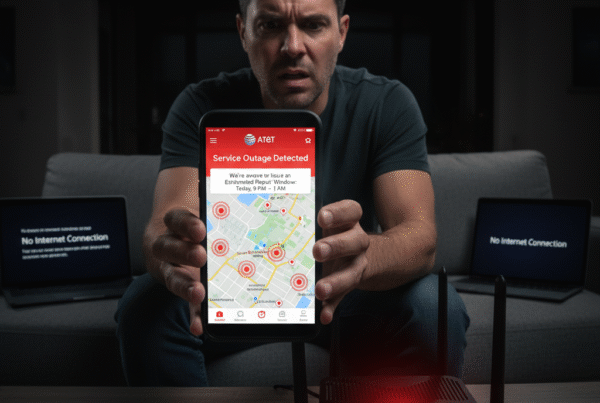
When your Spectrum internet suddenly stops working, it can interrupt streaming, gaming, business meetings, or online classes. The good news is—most Spectrum connection issues are common and easily fixable at home without needing a technician. In this guide, we’ll walk you through the top causes of Spectrum internet problems and step-by-step solutions to get you back online quickly.
1. Internet Keeps Disconnecting or Dropping Frequently
Causes:
- Weak Wi-Fi signal due to distance or obstructions
- Outdated router firmware
- Network congestion during peak hours
Fixes:
- Move closer to the router or use Wi-Fi extenders
- Restart your router and modem
- Update firmware via the Spectrum app
- Switch to Spectrum’s 5 GHz band for faster, stable speeds
✅ Pro Tip: Use Ethernet for gaming and streaming to avoid wireless interference.
2. Spectrum Modem Shows Red or Blinking Lights
Causes:
- Service outage in your area
- Loose or damaged coaxial cables
- Faulty modem
Fixes:
- Tighten all cable connections
- Check Spectrum outage map via the app
- Power cycle modem (unplug for 30 seconds and reconnect)
- If still red, call Spectrum support for replacement
3. Slow Internet Speed
Causes:
- Too many connected devices
- Spectrum throttling during peak hours
- Background downloads
Fixes:
- Run a speed test via speed.spectrum.com
- Disconnect unused devices
- Upgrade from 300 Mbps to 500 Mbps or Gig plan for high-usage homes
✅ If your speed is consistently below your plan’s promised rate, request a line check from Spectrum.
4. Wi-Fi Connected but No Internet
Causes:
- DNS failure
- Router glitch
- ISP service disruption
Fixes:
- Restart your router and modem
- Flush DNS using Command Prompt:
ipconfig /flushdns - Reset Spectrum equipment via the mobile app under Services > Reset
5. Spectrum Internet Outage
Causes:
- Maintenance or outages in your location
Fixes:
- Open Spectrum App > Outages
- Enable outage alerts
- Use mobile hotspot until service resumes
6. Router Overheating
Causes:
- Poor ventilation
- Running 24/7 without reboot
Fixes:
- Place router in open space, not inside cabinets
- Reboot every few days
- Consider upgrading to Spectrum’s Wi-Fi 6 router
7. Devices Not Connecting to Wi-Fi
Causes:
- Incorrect password
- Outdated network drivers
- MAC address filtering
Fixes:
- Forget and reconnect Wi-Fi
- Update device network drivers
- Disable MAC filters from router settings
8. Spectrum App Says “No Internet Connection”
Fixes:
- Toggle airplane mode ON/OFF on your phone
- Restart the Spectrum modem through the app
- Ensure your device is not in VPN mode
9. Gaming Lag & High Ping
Causes:
- Latency from overloaded servers
- Wi-Fi interference
Fixes:
- Use a wired Ethernet connection
- Enable QoS (Quality of Service) in router settings for gaming traffic
- Upgrade to Spectrum Internet Gig for the lowest latency
10. Spectrum Router Keeps Rebooting Automatically
Causes:
- Overheating
- Firmware updates in process
Fixes:
- Allow updates to complete
- Contact Spectrum if the issue persists beyond 15 minutes
✅ Final Troubleshooting Checklist:
| Issue | Quick Fix |
|---|---|
| Slow Internet | Reboot router, upgrade speed plan |
| No Connectivity | Check cables, reset modem |
| Frequent Drops | Use Ethernet, reduce devices |
| Outage | Check app notifications, use mobile hotspot |
🔌 When to Contact Spectrum Support
If you’ve tried all troubleshooting steps and still face issues, it’s time to contact Spectrum at 1-833-780-1880. You may need:
- Line inspection
- Equipment replacement
- Speed upgrade recommendations
Conclusion
Most Spectrum internet issues in 2025 can be fixed with quick resets, cable checks, and smart Wi-Fi optimization. By understanding the root causes and taking proactive measures, you can ensure fast, reliable internet for streaming, gaming, and remote work.